
Gmail has added a new feature called Tabs to your inbox. This feature is designed to make your inbox easier to manage by using different tabs to automatically organize your incoming mail into categories There are some great resources out there on how to set up tabs and what they do. However, this new organization can cause your important emails (from us) to end up on the Promotions or Updates tab, rather than in the Primary mailbox. In this article we’ll share some tips we’ve learned to help ensure your email is delivered to the Primary tab.
Place email in Primary tab
The best way to ensure that your emails that we sent to you appear in the Primary tab is to manually set this up in their Gmail account. There are three different ways you can ensure that an email will show up in a specific tab.
Drag and Drop
The easiest way to move an email in your inbox is to left-click and hold on the email to drag it from the Promotions tab over to the Primary tab.
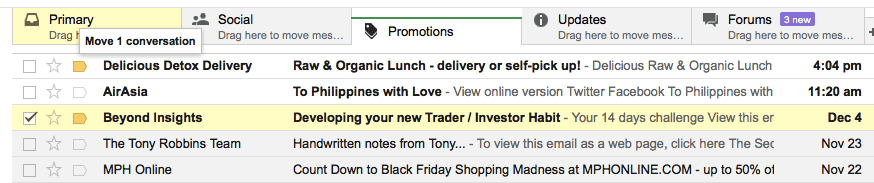
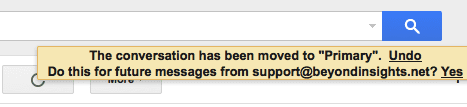
Releasing the mouse drops the email into the newly selected tab. Once dropped, Gmail displays a yellow box asking if you want to make this change permanent. Click Yes to ensure that all messages with the same from address will appear in the Primary tab going forward.
Right-Click
Similar to the drag and drop option, you can right-click on the email in some browsers to bring up a small list of options. Click the Move to tab option and select the tab you want to move the email to.
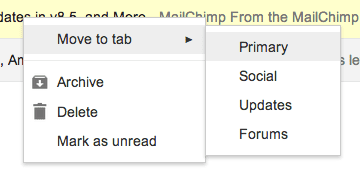
Selecting the tab moves the email and displays a yellow box asking if you want to make this change permanent. Click Yes to ensure that all messages with the same from address will appear in the Primary tab going forward.
Search and Filter
This option is a bit more advanced, requiring you to search for the from address in Gmail. When the results populate, click the small grey arrow to the right of the search bar to bring up the advanced search criteria. Click the Create a filter with this search link at the bottom of the results.
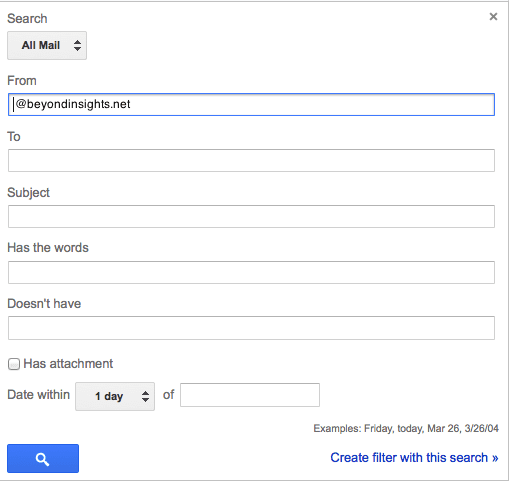
Near the bottom of the advanced filter window, you’ll see a Categorize as section with a drop-down box where you can select the tab you want. Once you’ve created the filter, all the emails from that address that are currently in your inbox will be moved to the Primary tab. Any new emails from this address will be delivered directly to the Primary tab.